
Showing posts with label Ipad. Show all posts
How to Downgrade to iOS 8.1 from iOS 8.1.1
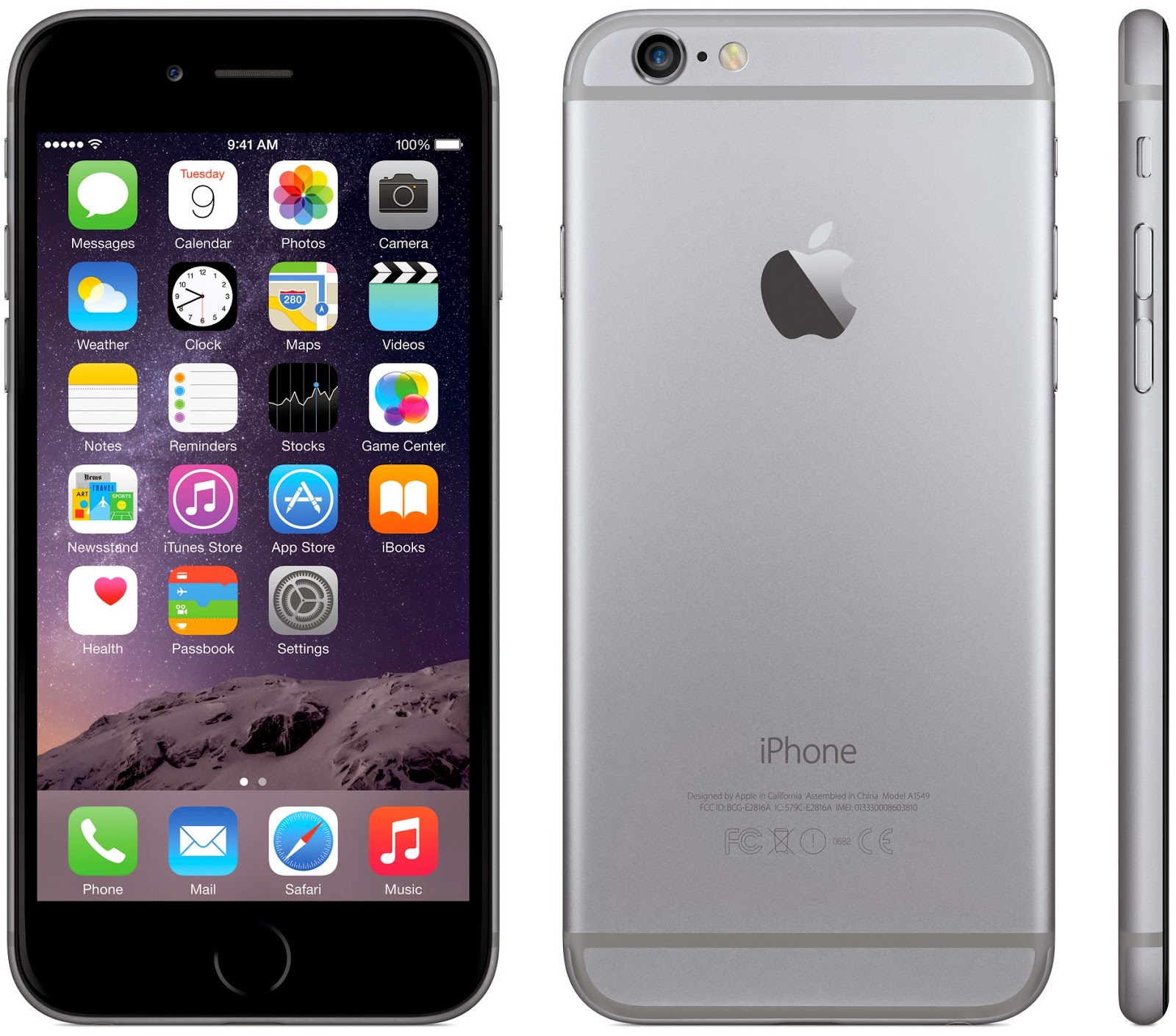
iOS 8.1.1 was released earlier last week and it aims to fix a handful of bugs and improve performance on the older iPhone 4s and iPad 2. However, the update also patches up the Pangu iOS 8 jailbreak, and the update could also cause general problems with your device. If you happen to be an unlucky user, here’s how to downgrade back to iOS 8.1 from iOS 8.1.1.

Normally, you wouldn’t be able to downgrade back down to an older version of iOS, but Apple is keeping iOS 8.1 open for a longer amount of time, allowing users to downgrade if they wish.
While iOS 8.1.1 fixes some minor bugs and such, it isn’t compatible with Pangu’s iOS 8 jailbreak, so if you plan on jailbreaking your iPhone or iPad, it’s important that you stay as far away from iOS 8.1.1 as possible, and if you already jumped the gun and updated to iOS 8.1.1, not all hope is lost.
If you want to downgrade back to iOS 8.1, you’ll want to do it as soon as possible, because it’s only matter of time before Apple stops signing iOS 8.1. Afterward, you won’t be able to jailbreak.
However, Apple is still signing iOS 8.1 right now, so you have a little bit of time to lock in iOS 8.1 and jailbreak your iPhone or iPad if you haven’t already done so. Here’s how to downgrade to iOS 8.1 if you upgraded to iOS 8.1.1.
Downgrading to iOS 8.1
Since iOS 8.1.1 is the latest version of iOS, you can’t simply open up iTunes and update to an older version. You have to add on a couple more steps, but luckily it’s fairly easy.

Before you do anything, make sure to back up your iOS device because this method will wipe your iPhone or iPad clean. Luckily, we have a handy guide on how to do just that.
First off, visit this website and download the iOS 8.1 IPSW for your specific iOS device. These files range between 1.5 GB and 2GB for iPhones and iPads, so be aware that it may take a bit of time to download them.
Once you have the file downloaded, plug your iOS device into your computer and open up iTunes. Go to your device’s summary page and hold down the Option/Alt key on your keyboard or Shift if you’re on Windows. Keep holding down the key as you click on Restore in iTunes.
Next, browse to find the IPSW file that you downloaded and open it. iTunes will begin restoring your iPhone and will install iOS 8.1.

After the process is complete, your iOS device should now be running iOS 8.1 and you’ll now have the latest version of iOS that supports the Pangu iOS 8 jailbreak. From there, you can jailbreak your device, which again only consists of a few simple steps.
Before you jailbreak, it’s important to back up your iPhone or iPad again, that way if anything goes wrong you can easily rewind.
Jailbreaking iOS 8.1
Before you do anything else, it’s crucial that you first disable the passcode on your device by going into Settings > Touch ID & Passcode and turn off the passcode. You’ll also need to turn on Airplane Mode by swiping up from the bottom of your screen to open Control Center and tap the airplane icon.
Now comes the fun part. Head to Pangu.io and download the jailbreaking tool.

Once it’s downloaded, open the Pangu tool and plug in your iOS device. When it’s recognized by the Pangu tool, click on Start Jailbreak and then click Already Did.
Sit back and wait for the jailbreak tool to do its thing. Your iPhone or iPad will eventually reboot and you should get a finished message. From there, you can close out the Pangu tool and unplug your iOS device.
Lastly, open up Cydia and let it prepare the file system. After that, you can download and install tweaks and go crazy!
Samsung Galaxy NotePRO 12.2 vs Apple iPad Air
Join us for the battle of the big tablet and, er, the even bigger tablet

Ladies and gentlemen, let’s get ready to rumble. It’s the
battle of the big tablets: in one corner, Apple’s flagship slate, the
iPad Air; in the other, Samsung’s maxi-sized, high-powered Galaxy
NotePRO 12.2.
Which is the king of the king-sized tabs? Now that we’ve had the chance to review both models, we’re in a position to tell you. Seconds out: it’s go time.
Which is the king of the king-sized tabs? Now that we’ve had the chance to review both models, we’re in a position to tell you. Seconds out: it’s go time.
Before we get on to the tablets’ respective stylings, a quick word about their size. As its name suggests, the 9.7in iPad Air is lightweight: 469g (478g for the cellular version) and 7.5mm thick. The Samsung Galaxy NotePRO 12.2in? Not so much. This 12.2in behemoth tips the scales at 750g – unlike the iPad, it’s too hefty to comfortably hold one-handed. It’s more a tray-blet than than a tablet, with the surface area of two iPad Minis combined! Samsung has managed to squeeze its thickness down to just 8mm, though.
Design: real metal vs fake leather
The NotePRO 12.2 is designed to be used in landscape the majority of the time – Samsung’s decision to locate the physical home button (which is flanked by capacitive back and menu controls) on one of the long edges makes it tricky to hit when using the tablet in portrait orientation. The iPad Air’s smaller size and lower weight means it can be used comfortably in either orientation.
Obviously the NotePRO’s size was always going to make it heavier and more unwieldy than the iPad Air, but even if they were equal in those respects, Apple’s superior styling and eye for design would get the nod.
Screen legends
The iPad Air boasts a 9.7in screen with a 2048 x 1536 resolution, which gives it a pixel density of 264ppi. The Galaxy NotePRO 12.2 has a 2560 x 1600 resolution and 247ppi, so there’s next to no difference in the sharpness of the screens in real world use (although given that you’re probably going to be holding the NotePRO a bit further away from your eyes than you would the iPad, Samsung’s device may appear marginally sharper to those with hawk-like peepers).
In terms of image quality, the two devices seem tuned for different tasks. The iPad Air’s deep blacks and facility with detail make it better suited for video playback and games, while the Galaxy NotePRO 12.2’s excellent contrast gives it the edge for web browsing and word processing. The NotePRO can also run four apps or videos at once thanks to its Multi Window mode, with all looking sufficiently clear and crisp.
Power and performance
The version of the NotePRO we tested came with a 1.9GHz quad-core Exynos chip and 3GB of RAM (the cellular version comes with a Snapdragon 800, however). That’s plenty of power on tap: more than enough to run four apps simultaneously via Multi Window and handle the latest games (although the tablet’s sheer size makes it unsuited for gaming).
The iPad Air’s specs might not beat the NotePRO’s on paper (dual-core 1.4GHz A7 processor, under 1GB of RAM), but it’s similarly slick when it comes to day-to-day use. In fact, going by Geekbench 3 the iPad Air is a fair bit quicker – although we don’t advise you put too much stock in benchmarks. The iPad also feature a 64-bit processor (something that may be significant in the future, if not greatly so now). On raw specs, the NotePRO has it.
In terms of battery life, the two tablets performed almost exactly the same in our HD rundown test: the NotePRO lasts a heck of a long time considering its huge screen.
Connectivity-wise, the NotePRO packs dual-band Wi-Fi, USB 3.0, Bluetooth 4.0 and optional 3G/4G. The Air offers much the same, minus USB 3.0 which it supplants with its Lightning port.
OS and apps
A hard one to compare, this, because they’re so different. The NotePRO has Android 4.3 Jelly Bean and Samsung’s Magazine UX over the top, while the iPad has iOS 7.
Each OS and UI has its advantages. Apple has iTunes and the App Store, giving iPad users access to the best-stocked digital shops around (Google Play isn’t at all bad, but iTunes has it beat) and a heap of apps tuned specifically for Retina display screens; Android is rather poorly served when it comes to apps suitable for large tablets. The NotePRO has the advantage of its S Pen stylus, which allows you to jot down notes, make sketches and circle details to remember for later. It’s a great tool for productivity and on-the-go working, and Magazine UX includes a number of handy widgets and apps tailored for the device.
Which one is best? It’s really going to depend on your preference for the OS and whether or not having apps designed specifically for large screens is a deal breaker. Both iOS 7 and Android 4.3 are slick and easy-to-use. We’re going to call this one evens.
Verdict
These are quite different tablets and generally suited to different tasks, although of course there are several areas where their skills overlap. If you’re looking for a lightweight, video-centric tablet with fantastic app support and an excellent supply of games, it’s got to be the iPad Air (which, with the price starting at £400, is also a heck of a lot cheaper than the £650 NotePRO).The NotePRO is far more focussed on business than leisure: if viewing a document in one window while videoconferencing in another is something you need, the iPad can’t help – but the NotePRO can. 12.2 inches is a huge screen size, but (thanks in no small part to the S Pen stylus) Samsung has managed to present a case for buying a really, really big tablet.
The iPad Air will suit the vast majority of users better than the NotePRO, and it’s a much more handsome product, but for some, Samsung’s tray-sized device will prove an invaluable companion.